Brokerages
Interactive Brokers
Introduction
The Lean CLI supports live trading on your local machine or in QuantConnect Cloud, which makes the transfer from backtesting to live trading as seamless as possible. You must log in using your QuantConnect account to deply your algorithm on your local machine or in QuantConnect Cloud. This page contains instructions on how to start live trading with the Interactive Brokers (IB) brokerage. If the Lean Configuration file in your organization workspace contains values for some of the command options, the CLI skips some of the prompts.
To view the implementation of the IB brokerage integration, see the Lean.Brokerages.InteractiveBrokers repository.
To use the CLI, you must be a member in an organization on a paid tier.
Deploy Cloud Algorithms
Follow these steps to start live trading a project in the cloud with the Interactive Brokers brokerage and the Interactive Brokers data provider:
- Log in to the CLI if you haven't done so already.
- Open a terminal in the organization workspace that contains the project.
- Run
lean cloud live deploy "<projectName>" --push --opento push . / <projectName>. to the cloud, start a live deployment wizard, and open the results in the browser once the deployment starts. - Enter 1 to select the Interactive Brokers brokerage.
- Set up IB Key Security via IBKR Mobile. For instructions, see IB Key Security via IBKR Mobile on the IB website.
- Go back to the terminal and enter your Interactive Brokers username, account id, and password.
- Enter a weekly restart time that's convenient for you.
- Enter whether you want to use the price data from Interactive Brokers instead of the data from QuantConnect. Enabling this feature requires you to have active Interactive Brokers market data subscriptions for all data required by your algorithm.
- Configure your notification settings.
- Enable or disable automatic algorithm restarting.
- Select the live node that you want to use.
- Enter 1 to select the Interactive Brokers data provider.
- Verify the configured settings and confirm them to start the live deployment in the cloud.
- Inspect the result in the browser, which opens automatically after the deployment starts.
$ lean cloud live deploy "My Project" --push --open
[1/1] Pushing 'My Project'
Successfully updated cloud file 'My Project/main.py'
Started compiling project 'My Project'
Successfully compiled project 'My Project'
$ lean cloud live deploy "My Project" --push --open
Select a brokerage:
1) Paper Trading
2) Interactive Brokers
3) Tradier
4) Oanda
5) Bitfinex
6) Coinbase Advanced Trade
7) Binance
8) Zerodha
9) Samco
10) Quant Bridge
11) Trading Technologies
12) Kraken
13) Charles Schwab
14) Bybit
15) TradeStation
16) Alpaca
17) Tastytrade
18) Eze
19) dYdX
20) Webull
21) Public
22) Clear Street
Enter an option: 1
$ lean cloud live "My Project" --push --open
Username: trader777
Account id: DU1234567
Account password: ****************
$ lean cloud live "My Project" --push --open
Weekly restart UTC time (hh:mm:ss) [21:00:00]:
You'll receive a notification on your IB Key device every Sunday to re-authenticate the connection between IB and your live algorithm. Enter a time on Sunday to receive the notification. Ensure your IB Key device has sufficient battery for the time you expect to receive the notification.
If you don't re-authenticate before the timeout period, you will receive an email from QuantConnect with two options: and . Click to restart the authentication process and receive a notification on your IB Key device. Click to stop the deployment. If you don't take action, your algorithm quits executing before the market opens for the assets in your portfolio. For example, 9:30 AM EST if your algorithm trades US Equities.
If you don't receive a notification, see I am not receiving IBKR Mobile notifications on the IB website.
$ lean cloud live "My Project" --push --open
Do you want to use the Interactive Brokers price data feed instead of the QuantConnect price data feed? (yes/no): y
You can configure any combination of email, webhook, SMS, and Telegram notifications for order events and emitted insights. To view the number of notification you can send for free, see the Live Trading Notification Quotas.
$ lean cloud live deploy "My Project" --push --open
Do you want to send notifications on order events? [y/N]: y
Do you want to send notifications on insights? [y/N]: y
Email notifications: None
Webhook notifications: None
SMS notifications: None
Select a notification method:
1) Email
2) Webhook
3) SMS
4) Telegram
Enter an option: 1
Email address: john.doe@example.com
Subject: Algorithm notification
Email notifications: john.doe@example.com
Webhook notifications: None
SMS notifications: None
Telegram notifications: None
Do you want to add another notification method? [y/N]: n
This feature attempts to restart your algorithm if it fails due to a runtime error, like a brokerage API disconnection.
$ lean cloud live deploy "My Project" --push --open
Do you want to enable automatic algorithm restarting? [Y/n]: y
If you only have one idle live trading node, it is selected automatically and this step is skipped.
$ lean cloud live deploy "My Project" --push --open
Select a node:
1) L-MICRO node 89c90172 - 1 CPU @ 2.4GHz, 0.5GB Ram
2) L-MICRO node 85a52135 - 1 CPU @ 2.4GHz, 0.5GB Ram
Enter an option: 1
$ lean live "My Project"
Select a live data feed:
1) QuantConnect
2) Interactive Brokers
3) Tradier
4) Oanda
5) Bitfinex
6) Coinbase Advanced Trade
7) Binance
8) Zerodha
9) Samco
10) Quant Bridge
11) Trading Technologies
12) Kraken
13) Charles Schwab
14) Polygon
15) CoinApi
16) Bybit
17) TradeStation
18) Alpaca
19) Tastytrade
20) Eze
21) dYdX
22) DataBento
To enter multiple options, separate them with comma: 1
If you select one of the following data providers, see the respective page for more instructions:
$ lean cloud live deploy "My Project" --push --open
Brokerage: Interactive Brokers
Project id: 1234567
Environment: Live
Server name: L-MICRO node 89c90172
Server type: L-MICRO
Live Data providers: Interactive Brokers
LEAN version: 11157
Order event notifications: Yes
Insight notifications: Yes
Email notifications: john.doe@example.com
Webhook notifications: None
SMS notifications: None
Telegram notifications: None
Automatic algorithm restarting: Yes
Are you sure you want to start live trading for project 'My Project'? [y/N]: y
Follow these steps to see the live status of a project:
- Log in to the CLI if you haven't done so already.
- Open a terminal in the organization workspace that contains the project.
- Run
lean cloud status "<projectName>"to show the status of the cloud project named "<projectName>".
$ lean cloud status "My Project"
Project id: 1234567
Project name: My Project
Project url: https://www.quantconnect.com/project/1234567
Live status: Running
Live id: L-1234567a8901d234e5e678ddd9b0123c
Live url: https://www.quantconnect.com/project/1234567/live
Brokerage: Interactive Brokers
Launched: 2021-06-09 15:10:12 UTC
Deploy Local Algorithms
If you have an ARM M1, M2, or M3 chip, you can't deploy a local live algorithm with the IB brokerage, see the Troubleshooting.
Follow these steps to start local live trading with the Interactive Brokers brokerage:
- Log in to the CLI if you haven't done so already.
- Open a terminal in the organization workspace that contains the project.
- If your algorithm trades US Equities, Options, or Futures, purchase and download the QuantConnect datasets that LEAN uses for the asset class. Crypto, Forex, and CFD algorithms can skip this step. The following table shows the datasets for each asset class:
If your algorithm uses universe selection, also download the universe dataset, such as the US Equity Coarse Universe or US ETF Constituents.Asset Class Datasets US Equity US Equity Security Master, to get adjusted prices. Without it, your algorithm uses raw prices. US Equity Options US Equity Security Master and US Equity Option Universe US Index Options US Index Option Universe US Futures US Futures Security Master and US Future Universe US Future Options US Futures Security Master, US Future Universe, and US Future Option Universe. To get access, contact us. - Run
lean live deploy "<projectName>"to start a live deployment wizard for the project in . / <projectName> and then enter the brokerage number, 1.$ lean live deploy "My Project" Select a brokerage: 1) Paper Trading 2) Interactive Brokers 3) Tradier 4) OANDA 5) Bitfinex 6) Coinbase Advanced Trade 7) Binance 8) Zerodha 9) Samco 10) Quant Bridge 11) Trading Technologies 12) Kraken 13) Charles Schwab 14) Bybit 15) TradeStation 16) Alpaca 17) Tastytrade 18) Eze 19) dYdX 20) Webull 21) Public 22) Clear Street
- Set up IB Key Security via IBKR Mobile. For instructions, see IB Key Security via IBKR Mobile on the IB website.
- Go back to the terminal and enter your Interactive Brokers username, account id, and password.
$ lean live "My Project"
Username: trader777
Account id: DU1234567
Account password: ****************
- Enter a weekly restart time that's convenient for you.
$ lean live "My Project"
Weekly restart UTC time (hh:mm:ss) [21:00:00]:
You'll receive a notification on your IB Key device every Sunday to re-authenticate the connection between IB and your live algorithm. Enter a time on Sunday to receive the notification. Ensure your IB Key device has sufficient battery for the time you expect to receive the notification.
If you don't re-authenticate before the timeout period, your algorithm quits executing.
If you don't receive a notification, see I am not receiving IBKR Mobile notifications on the IB website.
- Enter the number of the live data provider(s) to use and then follow the steps required for the data connection.
$ lean live deploy "My Project"
Select a live data provider:
1) Interactive Brokers
2) Tradier
3) Oanda
4) Bitfinex
5) Coinbase Advanced Trade
6) Binance
7) Zerodha
8) Samco
9) Quant Bridge
10) Trading Technologies
11) Kraken
12) Charles Schwab
13) IQFeed
14) Polygon
15) CoinApi
16) ThetaData
17) Custom data only
18) Bybit
19) TradeStation
20) Alpaca
21) Tastytrade
22) Eze
23) dYdX
24) DataBento
To enter multiple options, separate them with comma:
- Enter whether you want to enable delayed market data.
This property configures the behavior when your algorithm attempts to subscribe to market data for which you don't have a market data subscription on Interactive Brokers. When enabled, your algorithm continues running using delayed market data. Delayed market data is on a time lag that is usually 10-20 minutes behind real-time quotes, see Delayed Market Data Timing for more information. When disabled, live trading will stop and LEAN will shut down.
$ lean live "My Project"
Enable delayed market data? [yes/no]:
-
View the result in the <projectName> / live / <timestamp> directory.
Results are stored in real-time in JSON format.
You can save results to a different directory by providing the
--output <path>option in step 4.
If you select one of the following data providers, see the respective page for more instructions:
If you already have a live environment configured in your Lean configuration file, you can skip the interactive wizard by providing the --environment <value> option in step 4.
The value of this option must be the name of an environment which has live-mode set to true.
To connect LEAN to an IB Gateway instance that runs on your desktop instead of the instance inside the LEAN container, see Deploy with External IB Gateway.
Deploy with External IB Gateway
By default, when you deploy a local live algorithm with the Interactive Brokers (IB) brokerage, LEAN launches its own IB Gateway instance inside the Docker container, logs in with the credentials you provide to the deployment wizard, and manages the connection for the lifetime of the deployment.
Alternatively, you can run IB Gateway on your desktop and connect LEAN to it with the --ib-host and --ib-port options of the lean live deploy command.
In this setup, you log in to IB Gateway yourself, you can inspect the connection status in the IB Gateway window, and you can run several live deployments at the same time by launching one IB Gateway instance for each deployment.
In exchange, LEAN doesn't manage the IB Gateway instance for you, so you're responsible for the login, restart, and connection maintenance that LEAN and QuantConnect Cloud otherwise handle automatically.
Connection Maintenance
When you deploy with the IB Gateway instance inside the LEAN container, LEAN launches IB Gateway, logs in with your credentials, triggers the IB Key notification on your device, restarts IB Gateway at the weekly restart time you choose, and restarts it again if the connection to IB fails. When you connect to an external IB Gateway instance, LEAN skips all of this automation and only opens an API connection to the host and port you specify. You're responsible for the following tasks:
- Log in every day: IB Gateway logs you off or restarts every day at the time you set in , and IB requires you to re-authenticate with your IB Key device at least once a week. LEAN doesn't log in for you and doesn't trigger the IB Key notification, so you must log in to IB Gateway yourself, including the 2FA challenge, before each trading session.
- Handle IB Gateway restarts: LEAN doesn't schedule the weekly restart and can't restart IB Gateway if it exits, crashes, or updates. After each restart, log in again and confirm that the API Client row in the IB Gateway window turns green.
- Monitor the connection: If IB Gateway exits or logs you off, LEAN loses its connection to IB, waits a limited time for the connection to return, and then stops the algorithm. To recover, log in to IB Gateway and then redeploy the algorithm.
If you want LEAN to handle these tasks for you, deploy with the default IB Gateway instance inside the LEAN container as described in the Deploy Local Algorithms section, or deploy to QuantConnect Cloud as described in the Deploy Cloud Algorithms section.
Data Availability
The only data sources available to your algorithm are the live data providers you select in the lean live deploy wizard.
For most users, this is the IB Gateway instance itself, which serves raw price data for the assets you have an IB market data subscription for.
Data that's served exclusively in QuantConnect Cloud isn't available from IB Gateway. For example, the following data isn't available without an additional data subscription:
- The QuantConnect universe files, such as the US Equity coarse and fine fundamental universes, the US ETF constituents universe, and the Equity Option, Index Option, Futures, and Future Option universes.
- The corporate actions in the US Equity Security Master, which LEAN needs to serve adjusted Equity prices, and the US Futures Security Master, which LEAN needs to serve continuous Futures contracts.
If your algorithm depends on any of this data, subscribe to the datasets in the Dataset Market, download them with the CLI before you deploy, and keep your local copy up to date. For more information, see the Data Provider section.
Configure IB Gateway
Follow these steps to launch and configure an IB Gateway instance that LEAN can connect to:
- Download and install IB Gateway on your Windows, Mac, or Ubuntu desktop, and then launch it.
- Log in to IB Gateway with your IB username and password, including any 2FA required.
- In the IB Gateway window, click .
- Clear the Read-Only API check box so that LEAN can place orders.
- Note the value of the Socket port field. By default, the port is 4001 for live trading accounts and 4002 for paper trading accounts. You need this value when you deploy the algorithm.
- Click and then disable all of the precautions that IB Gateway enforces on API orders by selecting all of the Bypass check boxes. If you leave the precautions enabled, IB Gateway blocks LEAN's orders with confirmation dialogs.
- Click .
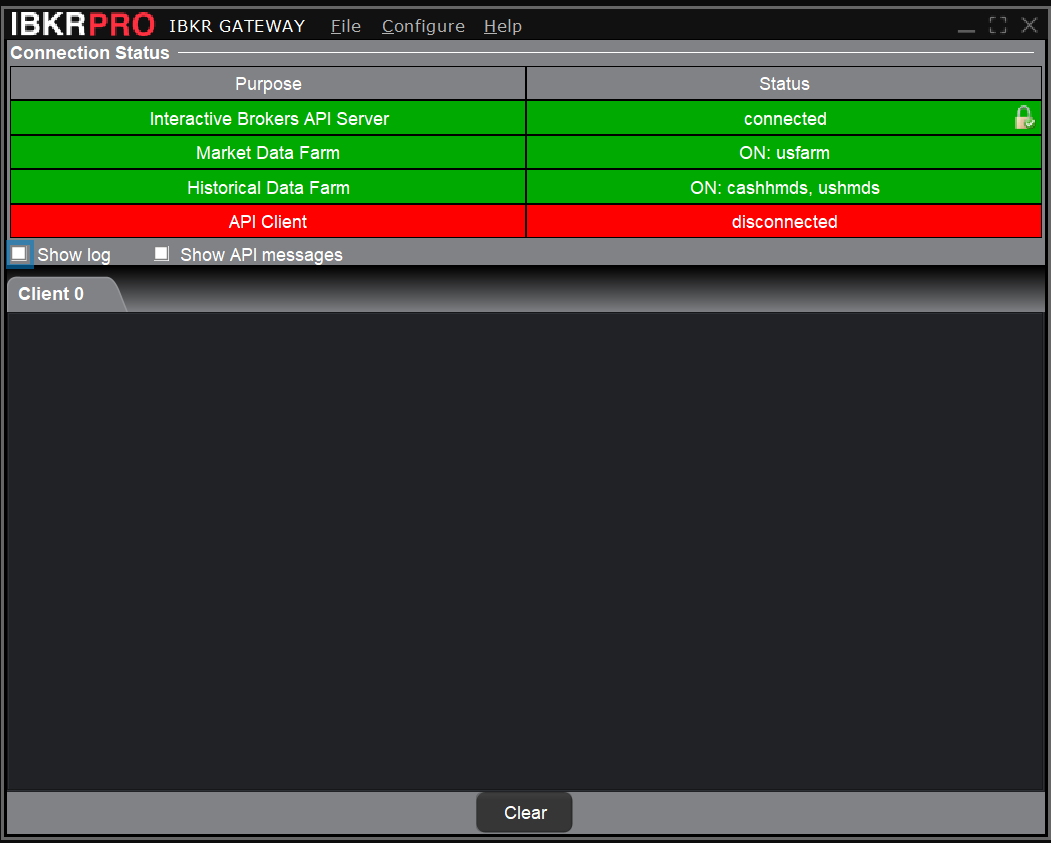
- Leave IB Gateway running. Until LEAN connects, the Connection Status table in the IB Gateway window shows the API Client row in red with a disconnected status.
Deploy Algorithms
To connect LEAN to the IB Gateway instance on your desktop, run lean live deploy with the --ib-host option set to host.docker.internal and the --ib-port option set to the port you noted in the IB Gateway settings.
Docker resolves the host.docker.internal hostname to your desktop from inside the LEAN container.
$ lean live deploy "My Project" --ib-host "host.docker.internal" --ib-port 4001
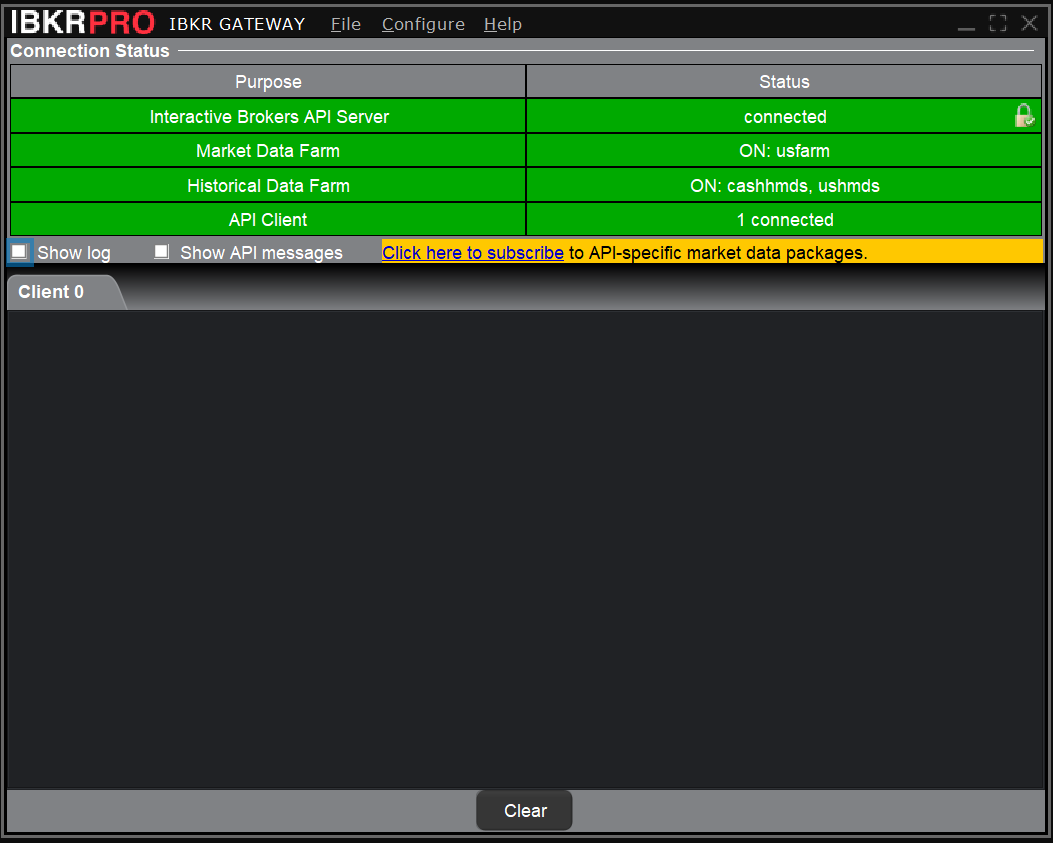
Follow the rest of the deployment wizard as described in the Deploy Local Algorithms section. When LEAN connects, the API Client row in the IB Gateway window turns green and shows the number of connected clients.
Run Multiple Deployments
To run multiple live deployments at the same time, launch a separate IB Gateway instance for each deployment and configure each instance to listen on a different port. Follow these steps:
- Launch and log in to one IB Gateway instance for each deployment.
- In each instance, follow the steps in the Configure IB Gateway section and set the Socket port field to a unique value (for example, 4001, 4002, and 4003).
- Deploy each algorithm with the
--ib-portoption set to the port of the IB Gateway instance that the algorithm should use. To keep the terminal free for the next deployment, add the--detachoption.$ lean live deploy "My Project" --ib-host "host.docker.internal" --ib-port 4001 --detach $ lean live deploy "My Other Project" --ib-host "host.docker.internal" --ib-port 4002 --detach
Data Provider
For information about the IB data provider, see Interactive Brokers. In local deployments, universe selection is available if you download the data from the Dataset Market. The dataset listings show how to download the universe selection data with the CLI. To stay up-to-date, periodically download the new data from QuantConnect Cloud, which you can automate with Python scripts. For example, the following tutorials explain how to download historical data and download daily updates:
- US Equity Coarse Universe
- US Equity Option Universe
- US ETF Constituents
- US Index Option Universe
- US Futures Universe
- US Futures Options Universe
The IB data provider serves raw data. To get adjusted Equity data in local deployments, download the US Equity Security Master. To get continuous Futures data in local deployments, download the US Futures Security Master.
Troubleshooting
The following table describes errors and warnings you may see when deploying to IB:
| Error Message(s) | Possible Cause and Fix |
|---|---|
| The credentials you provided are incorrect. Typically, the password contains leading and/or trailing white spaces. Copy the password to a text editor to ensure the password is correct. If you can't log in to Trader Workstation (TWS) with your credentials, contact IB. If you can log in to TWS but can't log in to the deployment wizard, contact us and provide the algorithm Id and deployment Id. | |
| Download IB Gateway, run it, and follow the instructions provided. | |
|
| |
| IB still recognizes your previous live deployment as being partially connected. It can take a minute to fully disconnect. For more information, see Security and Stability > Connections. | |
|
| |
| You haven't replied to the two factor authentication requests. The code card authentication ("Challenge") is triggered when you don't reply to the IB mobile 2FA requests. Ensure your IB Key device has sufficient battery for the time you expect to receive the notification. If you don't receive a notification, see I am not receiving IBKR Mobile notifications on the IB website. | |
| Upgrade your plan from IBKR Lite to IBKR Pro. | |
Your algorithm added an invalid or unsupported security. For example, a delisted stock, an expired contract, inexistent contract (invalid expiration date or strike price), or a warrant (unsupported). If the security should be valid and supported, open a support ticket and attach the live deployment Id.
The algorithm will continue running, but it won't trade the security. If you don't want to deploy to an account with an invalid or unsupported security, set Settings.IgnoreUnknownAssetsself.settings.ignore_unknown_assets is falseFalse.
| |
|
| |
| Your algorithm uses the Interactive Brokers Data Provider, but you don't have a subscription to it. Subscribe to the data bundle you need, contact IB, or re-deploy the algorithm with a different data provider. Try the QuantConnect or the hybrid QuantConnect + Interactive Brokers data providers on QuantConnect Cloud or try a third-party provider. | |
| IB didn't respond to an order request. Stop and re-deploy the algorithm. On the next deployment, LEAN retrieves this order or the positions it opened or closed. | |
| Your Docker installation has pulled the ARM platform version of the LEAN Docker image. This version doesn't include IB Gateway, because QuantConnect doesn't support Interactive Brokers integration with ARM chips (e.g.: Apple M1, M2, and M3 chips). | |
| You have logged in to IB from another location while your live deployment is running. This disconnects your live deployment from IB datafeed. If you close the other session, your algorithm will restore the data connection automatically, and will not stop with an error. See the "An existing session was detected and will not be automatically disconnected" case. |
To view the description of less common errors, see Error Codes in the TWS API Documentation. If you need further support, open a new support ticker and add the live deployment with the error.
You can also see our Videos. You can also get in touch with us via Discord.
Did you find this page helpful?
